4 Steps to Setting Up Your InfoProduct on Warrior Plus
Step #1 - This is what you’ll need:
An account with WarriorPlus (it’s free): Sign up here A PayPal and/or Stripe account: Sign up for them up here – PayPal | Stripe An email marketing tool such as Aweber, ConvertKit, etc.
Do note: Your email marketing tool must integrate with WarriorPlus.
These are the email marketing services accepted by WarriorPlus:
| AWeber | CampaignRefinery | GetResponse v3 | MailChimp |
|---|---|---|---|
| Active Campaign | Constant Contact | GoToWebinar | Mailvio |
| ConvertKit | Demio | HighLevel | MarketHero |
| Custom POST | Drip | Hyros | InfusionSoft |
You’ll need an email marketing tool that integrates with WarriorPlus for you to automatically add customers to an email list. Moving on…
Step #2 – Get these details ready
- our product image (size: 125 x125 px)
- The URL(s) to your product sales page/s
- The URL to your download page (or file)
- Your JV page (if you have one)
Before proceeding, it’s imperative that you have these details ready. This will speed up the entire process without you having to scramble back and forth.
While graphic design and page creation is beyond the scope of this report, here are a few pointers:
If you wish to get an ecover done for your product, Fiverr is the place to go.
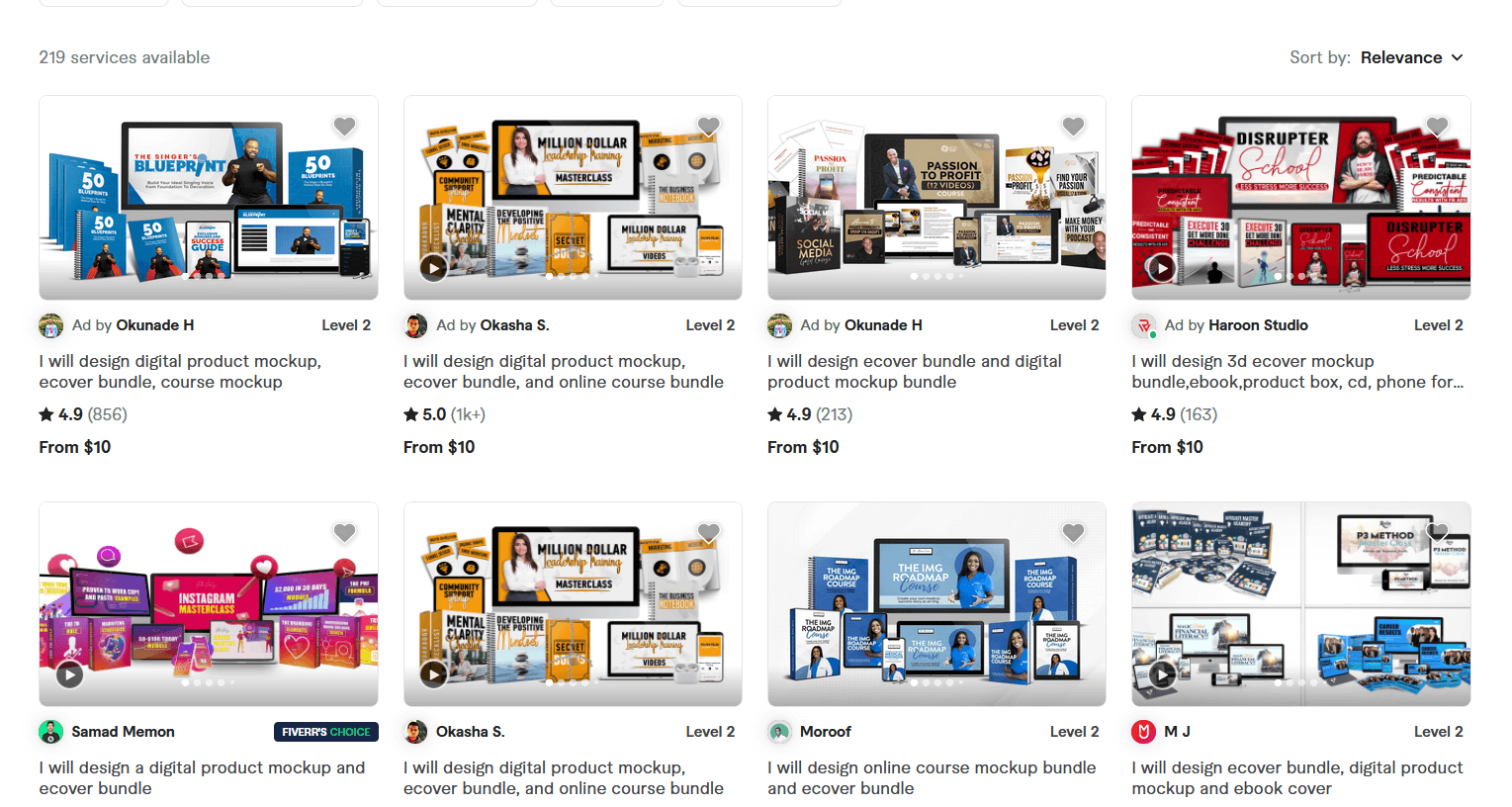
If you wish to create an ecover yourself, you can use Canva, or eCover Authority.
For your sales pages, there are tons of page builders out there such as ThriveThemes, Elementor, etc.
You can’t go wrong with ThriveThemes. It’s one of the best out there.
Create your sales pages (and download page, if you’re using one) with a page builder that you’re proficient with.
To protect your download page, you may use a tool like ThriveThemes. This tool is optional, but it will protect your page from enthusiastic thieves.
Step #3 – Setting Up Payments & Integrations in WarriorPlus
Once you log into W+, this is what you’ll see:
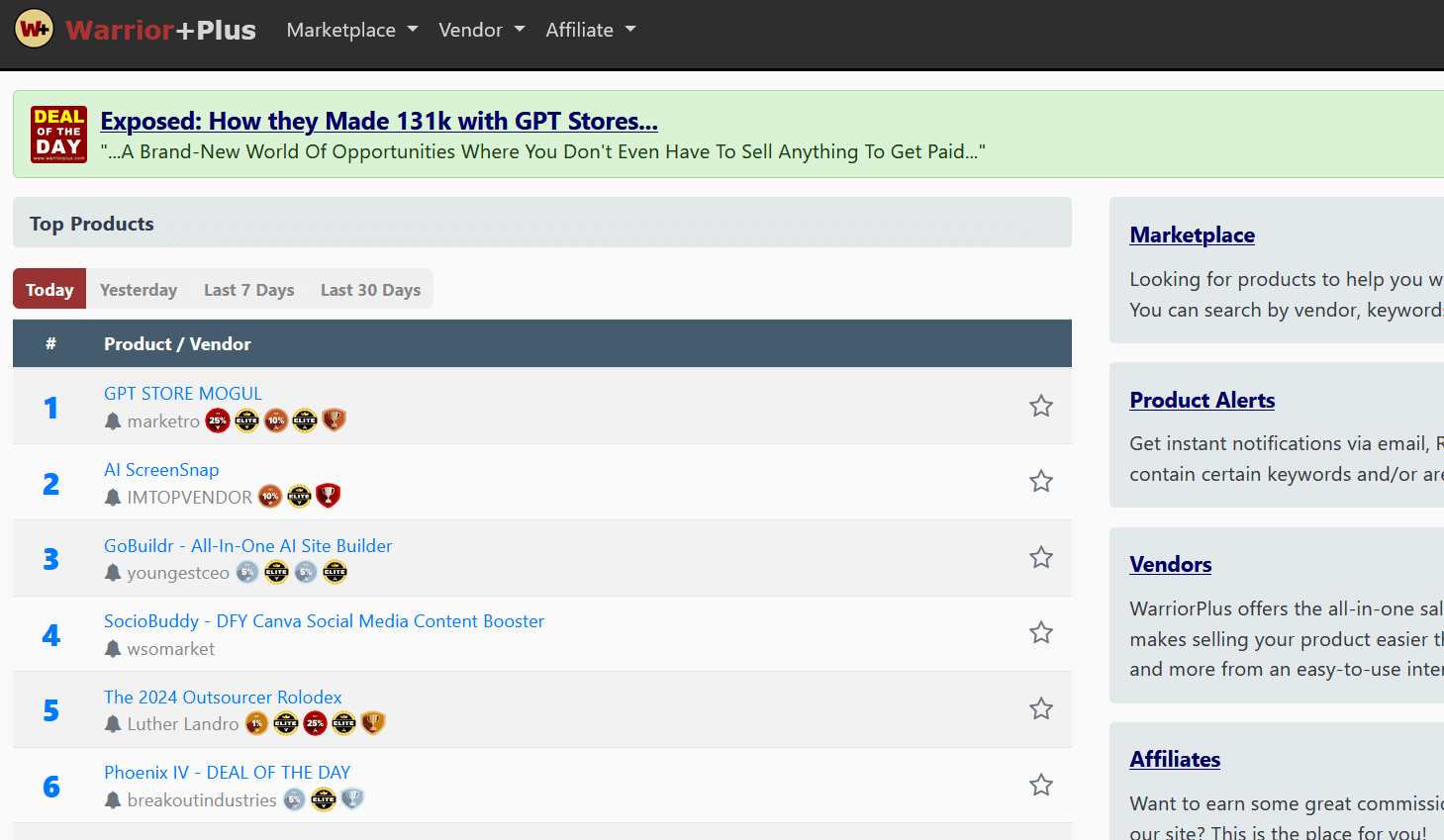
Click on the red button (with your account name) on the upper right side of your screen and click on ‘my account.

You’ll see this page. Click on ‘Merchant Accounts.
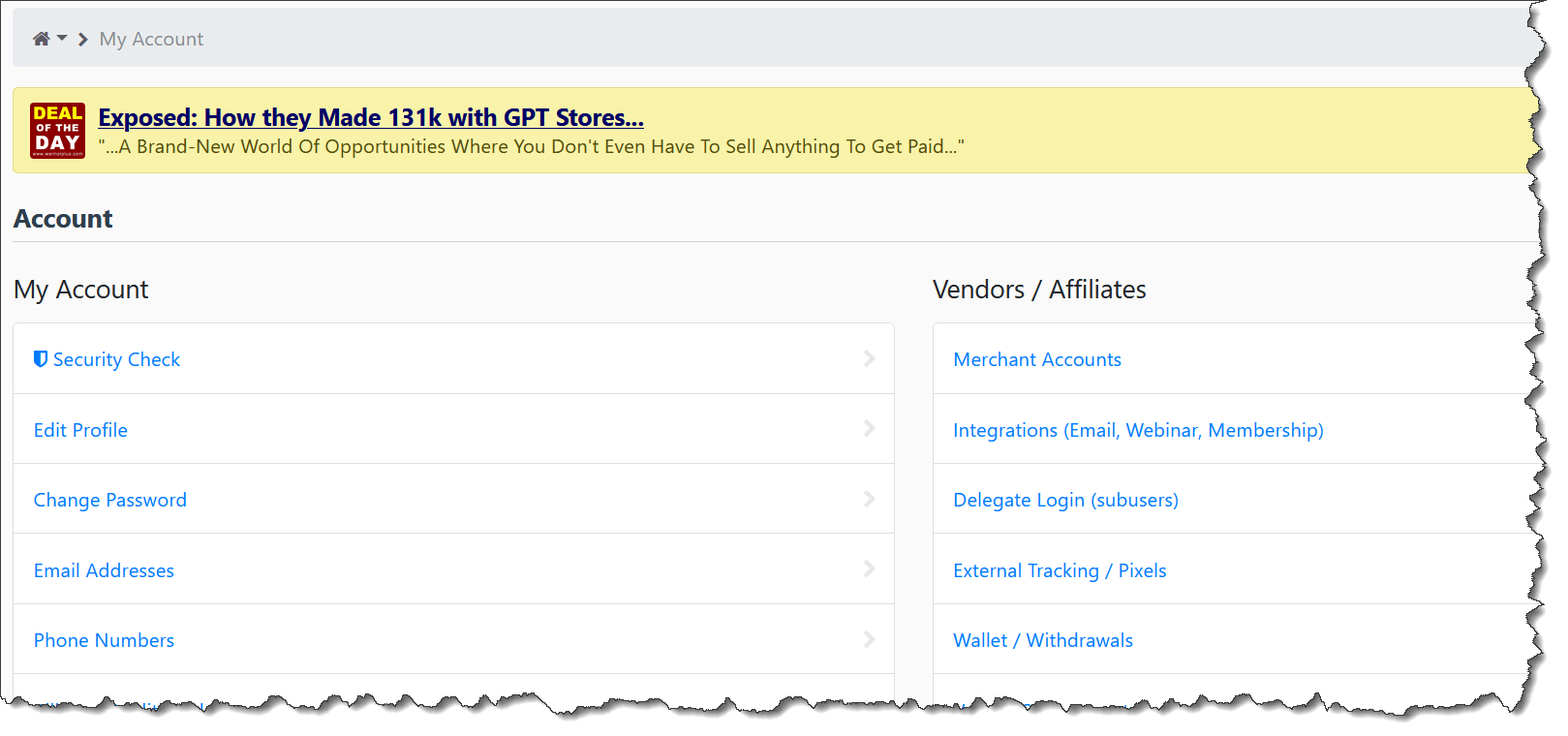
This is where we will set up the payment processors. Hover on the green ‘New Account’ tab and you’ll see this…

Set up your PayPal (and Stripe, if you’re using it) here. Once you’re done, go back to the ‘My Account’ page. Now we’ll need to integrate WarriorPlus with our email marketing software… Click on ‘Integrations’
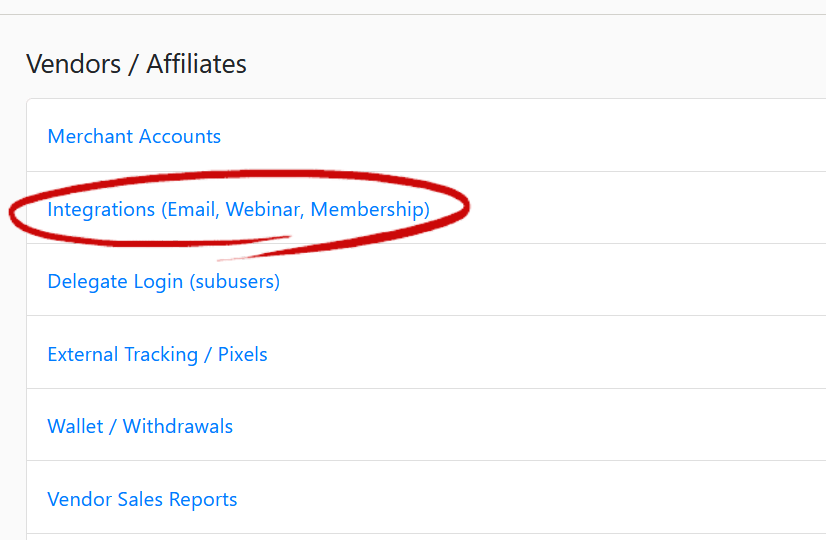
Click on the green ‘New service’ button and you’ll see a dropdown list of all the email marketing services that integrate with WarriorPlus.

Choose your service and follow the guided steps after that to integrate your autoresponder.
You’ll need to log into your email marketing software to get your API key, which is often found in the account settings. Copy and paste that API key into WarriorPlus and save it.
For this example, we’ll use ConvertKit as our email marketing tool, and this is what the API key will look like…

Once that’s done, give yourself a pat on the shoulder for a job well done.
You didn’t really do much… but you need all the motivation you can get. It’s time for the heavy lifting!
Step #4 – Create Your Product Listing in WarriorPlus
Time for the fun part…
It doesn’t matter if you are selling a single product or multiple products in a funnel. Every product needs a separate listing in WarriorPlus (W+).
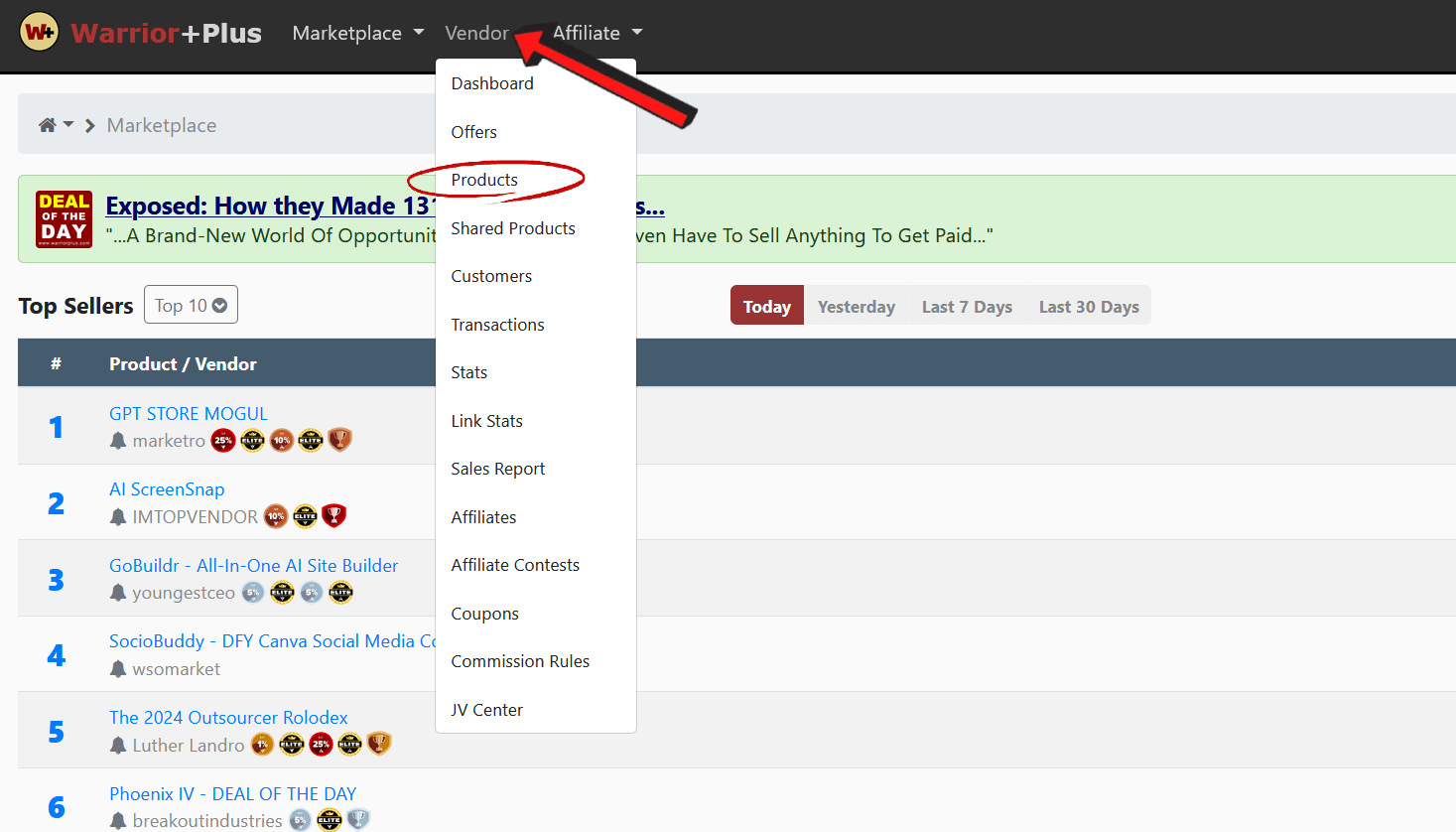
Once you log into W+, this is what you’ll see. Hover over the ‘Vendor’ tab, and you’ll see a dropdown list. Click on ‘Products’
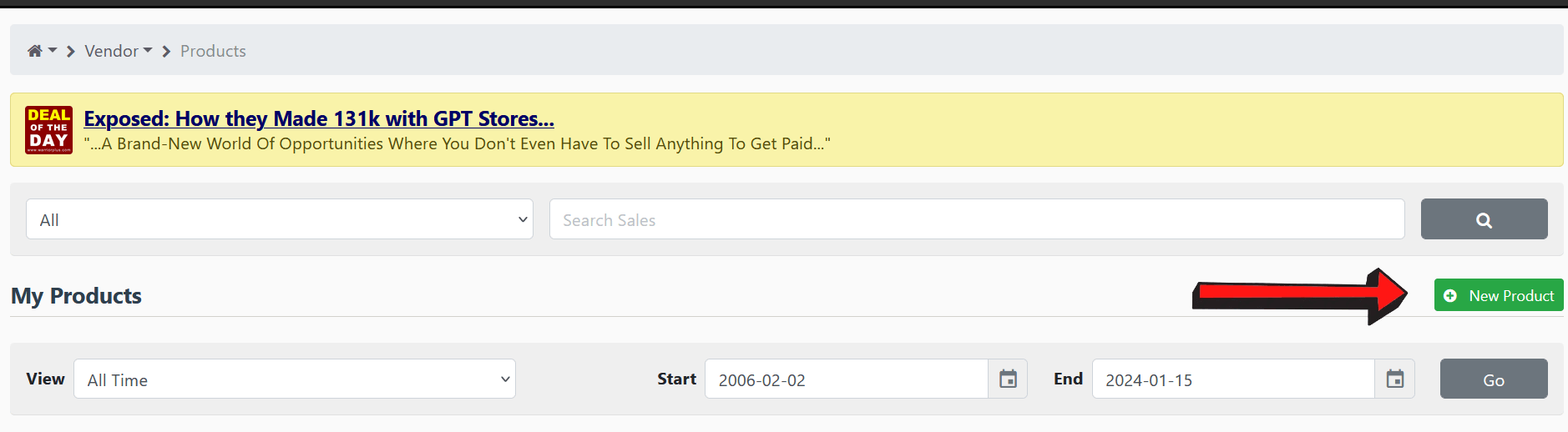
From here, click on the ‘New Product’ green button.
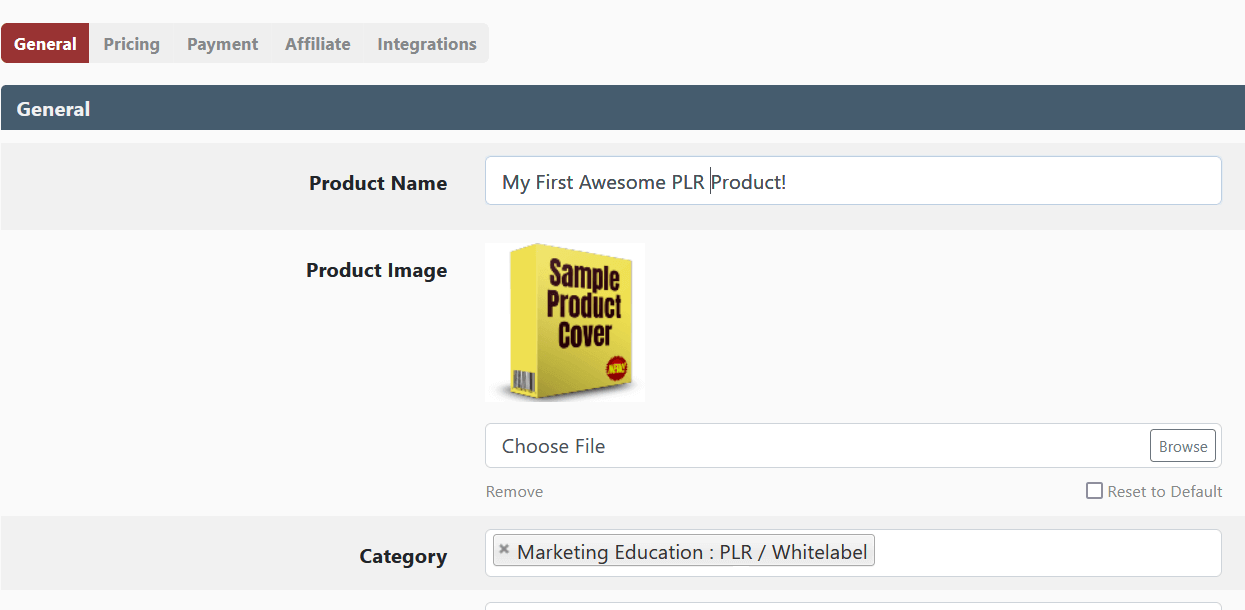
- Add your product name, upload the product image (125 x 125 px).
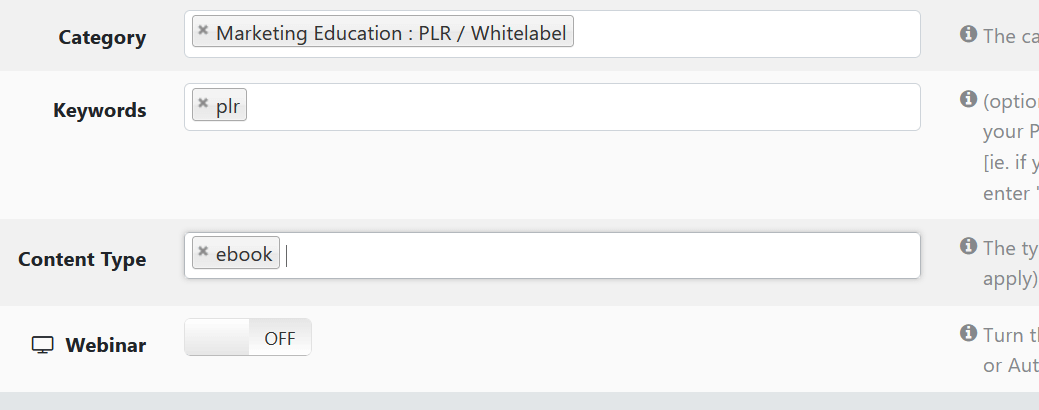
- There are several categories such as: affiliate marketing, copywriting, email marketing, etc. Choose 1-3 categories that your product may fall into.
- Choose a few keywords related to your product.
One interesting point to note: If you went to the ‘Marketplace alerts’ page here: https://warriorplus.com/marketplace/alerts ...
You’ll see the most popular keywords that buyers are following.
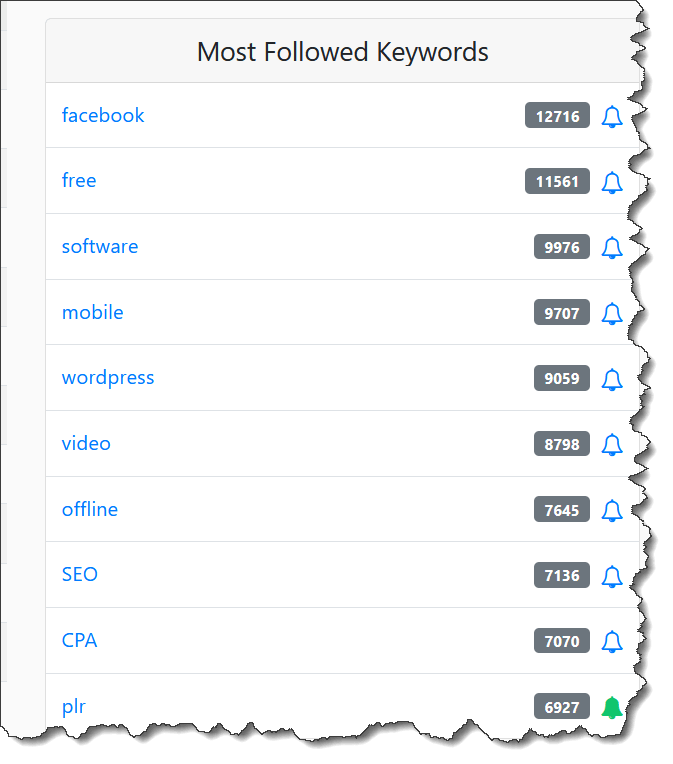
If you use these keywords, they’ll receive an alert when you launch your product.
Choose one that’s closely related to your product and add it to your keywords.
Don’t overdo it.
- Choose the content type that suits your product.
We’ve chosen ‘eBook’ but yours may be a video or software, etc. Choose the right one.
- Product Access
There are a few points to note here:
If you’re NOT using a product download page, you’ll only need to upload the file to WarriorPlus, but your file size must be 100 MB or less.
You’ll only be allowed to upload 1 zip file. So you’ll have to put all your downloads into one file, zip it up, and upload it.
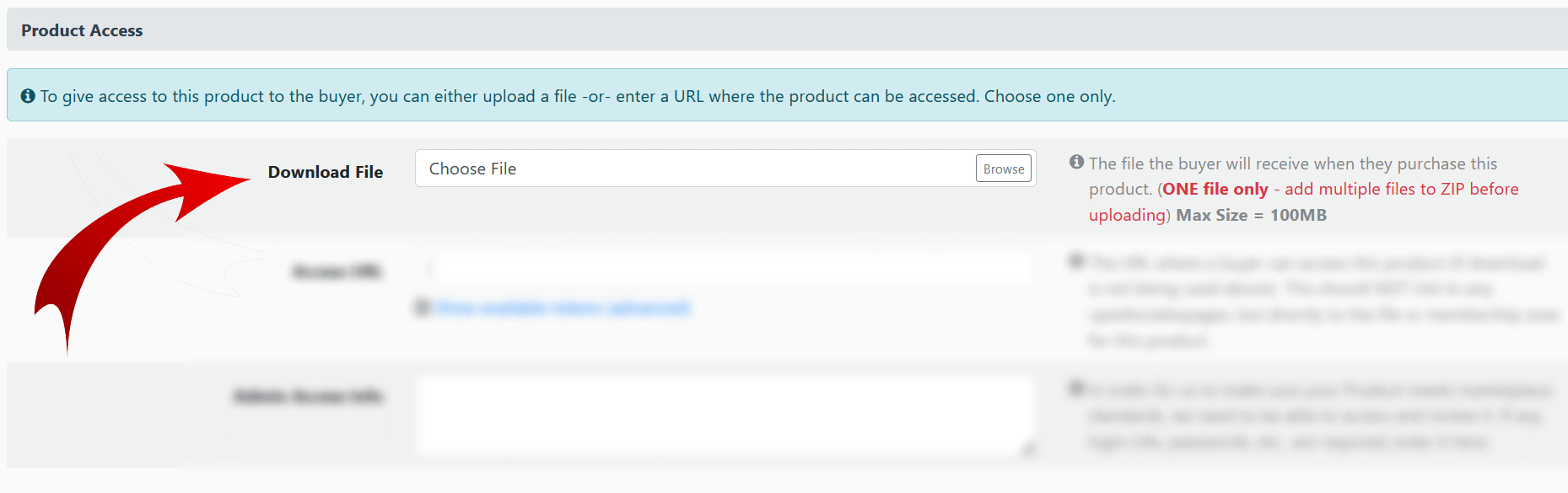
If you’re using a product download page, you’ll add your URL in the field shown in the image below.
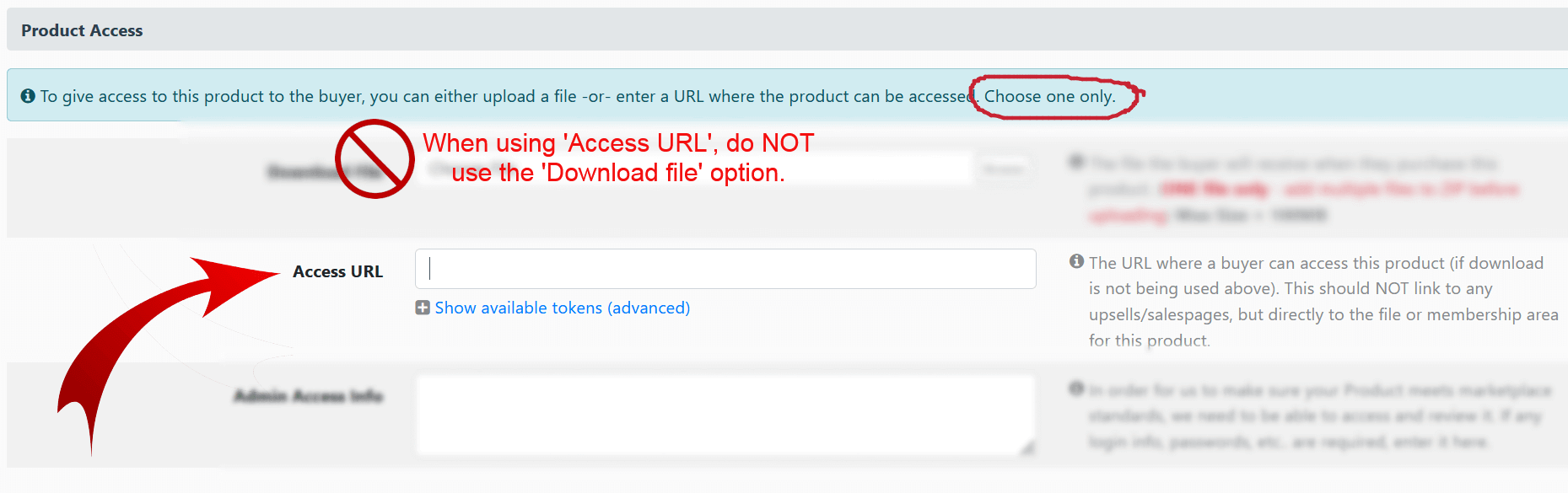
You WILL NOT use the download file field if you’re using the ‘Access URL’ option. Only choose ONE way to deliver your product.
If you’re not using a download page, but you’ve uploaded your file to a platform like Amazon S3 or Dropbox, you’ll add your file URL in the field.
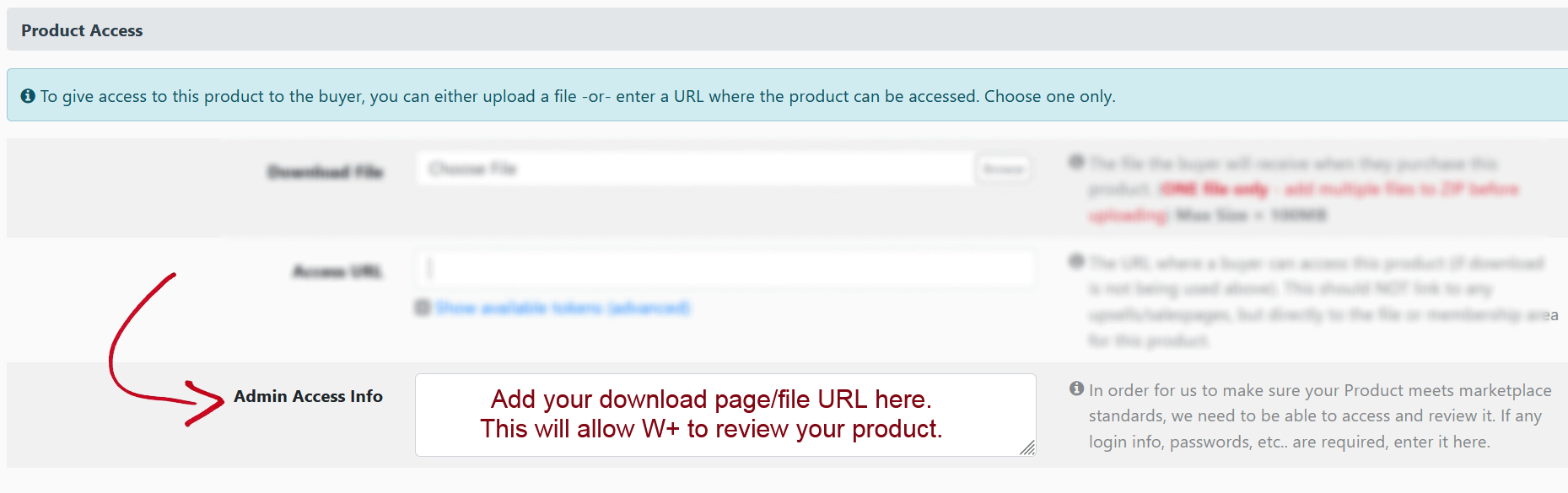
Finally, you’ll need to add your download page/file URL in the field shown below.
This will allow their compliance team access to your product to see if it can be shown in the marketplace and your product might even get picked for Deal of the Day.
- Licensing
Under licensing, you can choose if the buyer gets personal use…
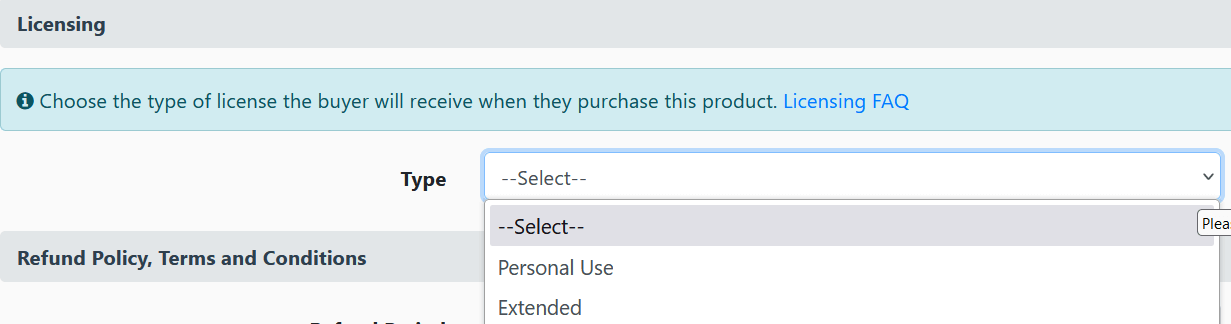
Or extended use…
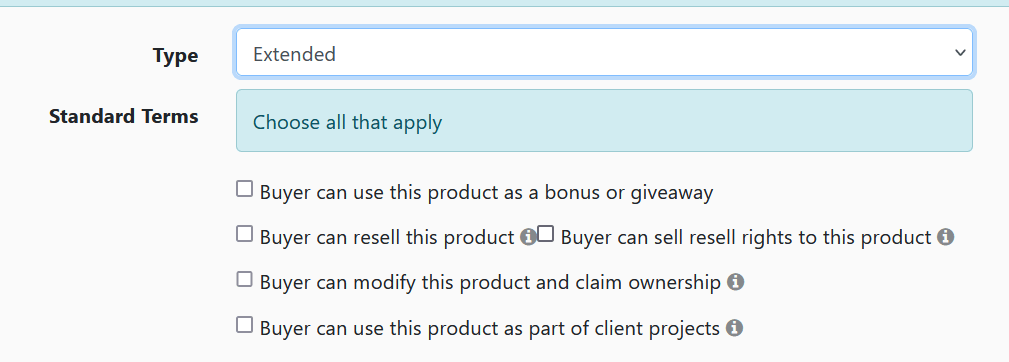
The extended use option is mostly used by vendors who are offering PLR rights, resell rights, etc.
- Refund policy If you’re offering a 30-day money back guarantee, just add 30 in the field shown below. If it’s 14 days, then 14 and so on.

If you’re NOT offering a money-back guarantee, type 0 in the field.
When your product does not have a refund policy, buyers will need to check a box acknowledging the no-refund policy (before purchase).
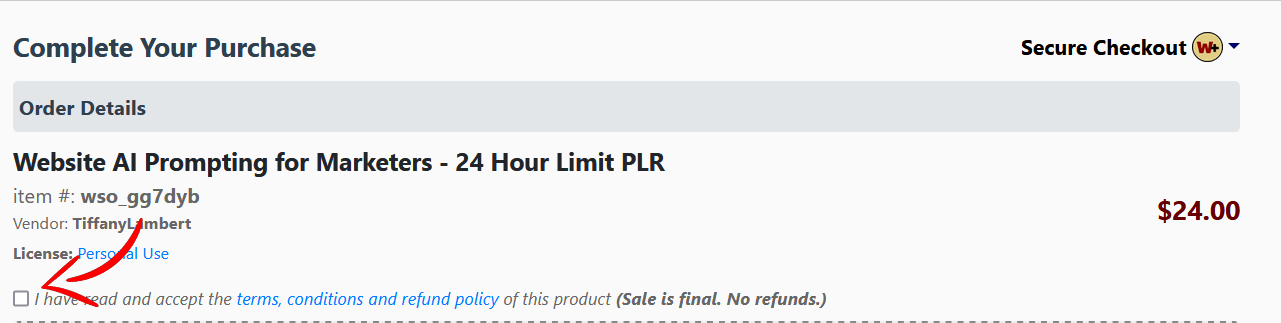
- Support details
In this section, you’ll provide an email for your buyers to contact you, if they have access issues or enquiries.
If you’re using a support desk, just add your support desk URL to the ‘Support URL’ field.
You can add your details to both fields, but the W+ system will override your support email and just give your customers your support URL.
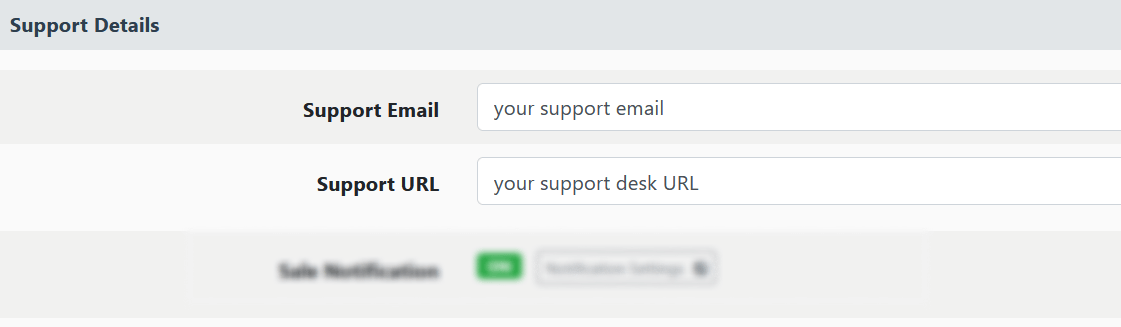
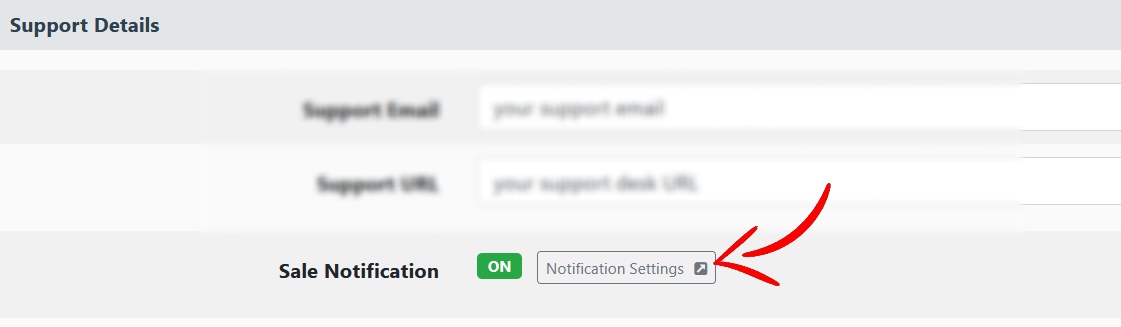
If you wish to get an email notifying you every time you get a sale, etc. just click on the button (shown below), and turn on the notifications.
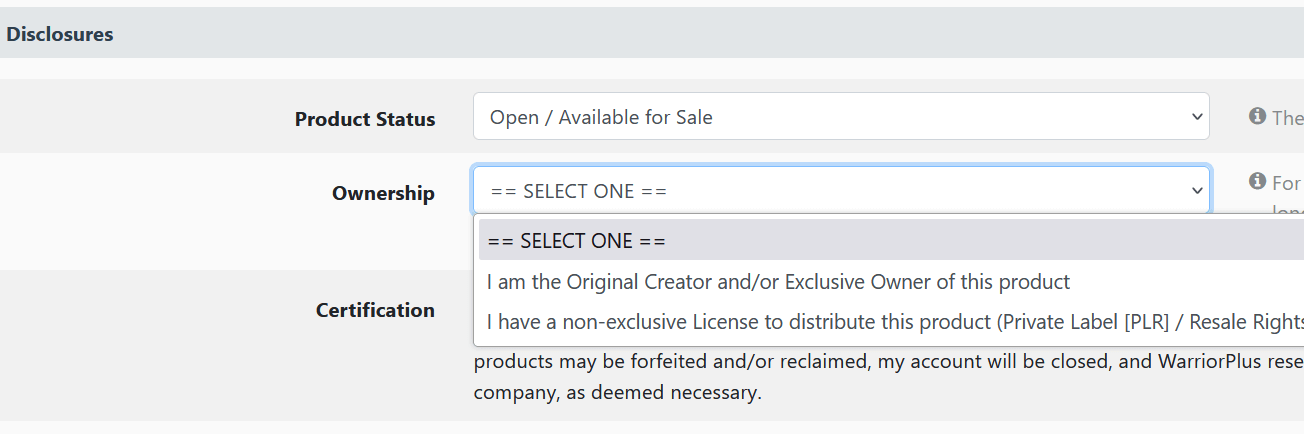
- Disclosures Under this section, set your product so it’s ‘Open/Available for sale.’ Then choose the ‘Ownership’ option that suits you.
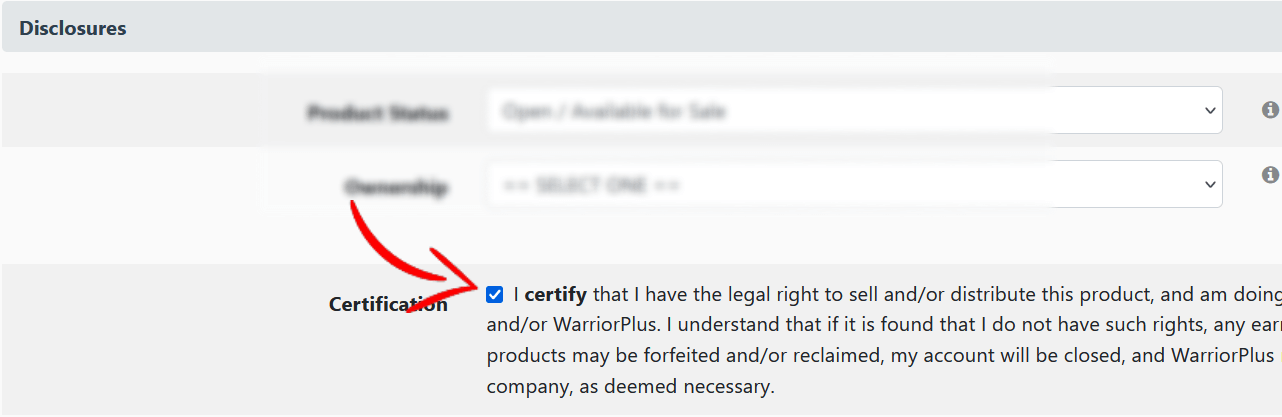
Once that’s done, check the box (shown below).
- Pricing
Here’s where you set the price for your product. Choose whether you’re selling a standalone product… or a recurring subscription… or a free product.

Once that’s done, you’ll set a price for the product.
If we choose the ‘Buy Now / Single Payment’ sales type… in most cases, you’ll enter the price for your product in the ‘Sale Price’ field.
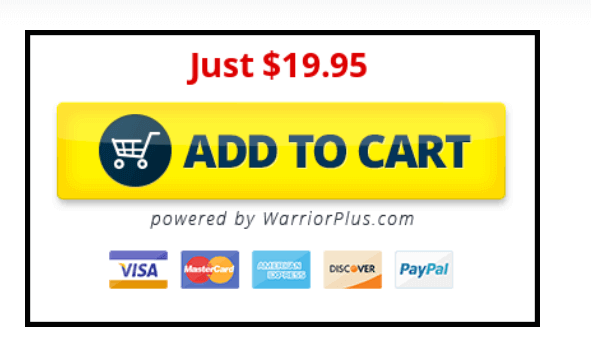
Let’s assume we set a price of $19.95, our buy button will look like this...
But if we set the Regular Price to $47 and the Sale Price to $19.95…

This is what our buy button will now look like…
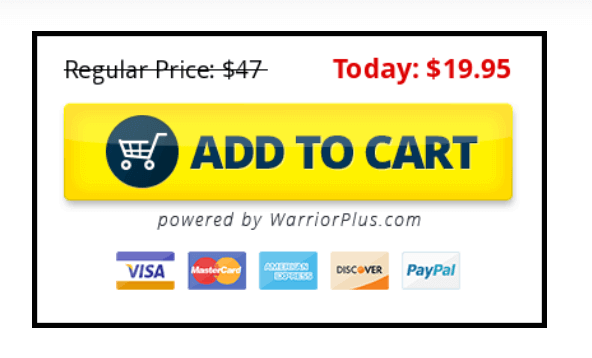
Yes! There’s a regular price with a strikethrough. So it appears as though you’re giving the buyer a discount.
This may improve your conversions, but you’ll need to test it out and see for yourself.
If you wish to limit sales, just add the number of copies you wish to limit the product to, and once you’ve hit the number, WarriorPlus will display a ‘sold out’ sign on the buy button.
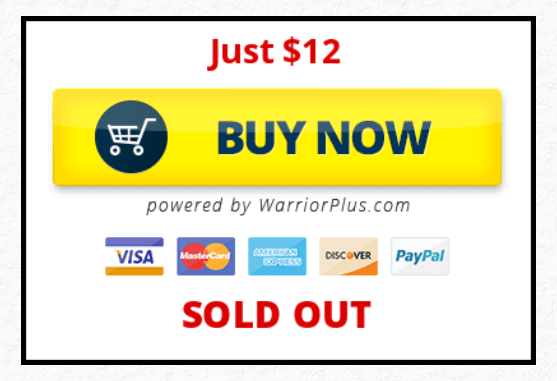
- Merchant accounts
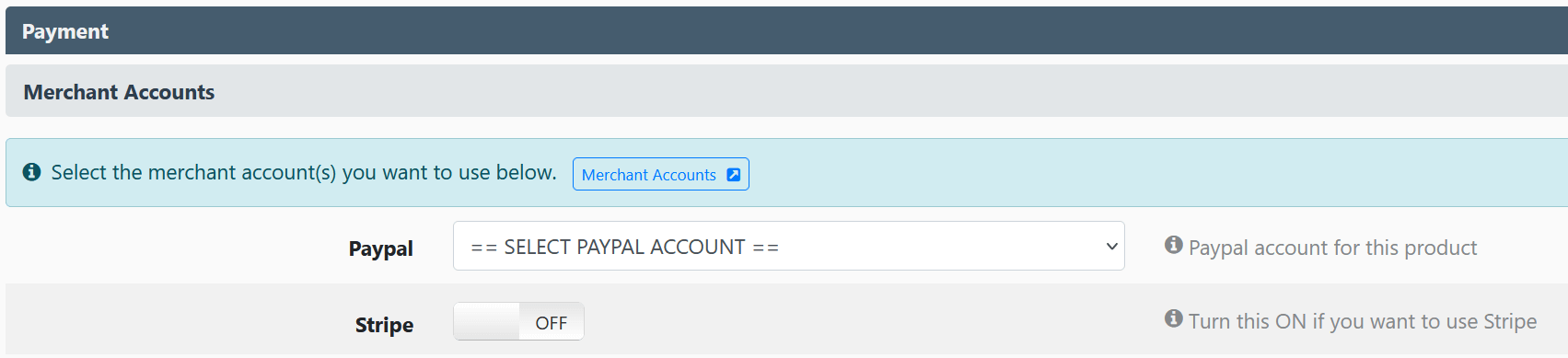
Setup your PayPal account here. Since you integrated it earlier, it should show up in the dropdown list. Choose it.
If you’ve enabled Stripe, you can turn that on too. Next up, you’ll see customer fields…
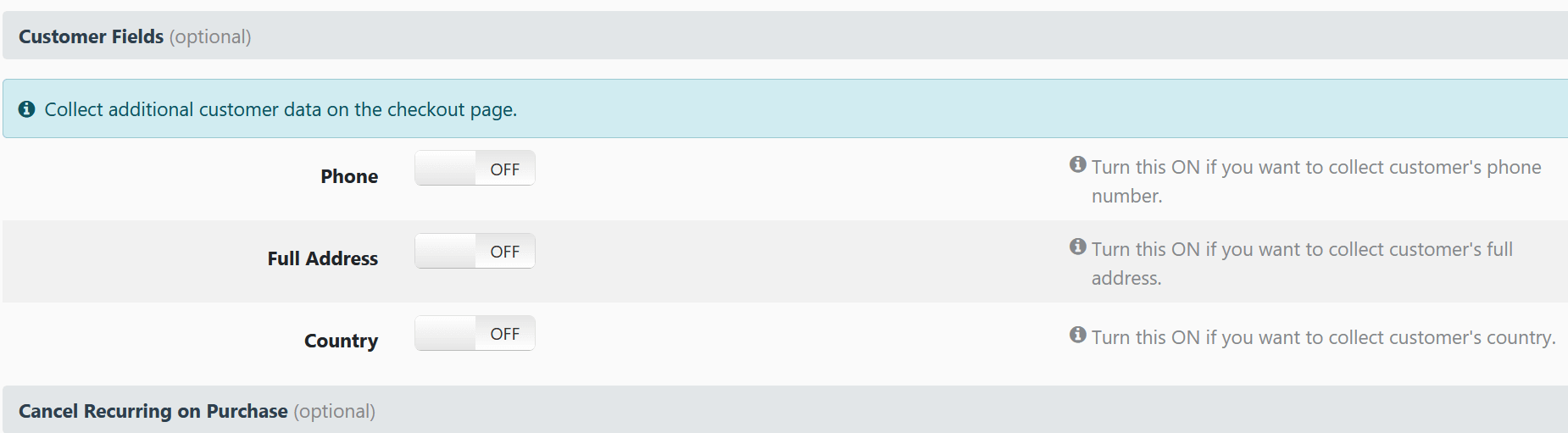
Our suggestion is that you ignore all of these.
You really don’t need your customers’ phone numbers or addresses to sell an infoproduct.
You’re not visiting them for Christmas… and people are generally hesitant to divulge too much personal information online. This is not Facebook.
In fact, the fewer details you ask for, the better – and your conversions will improve significantly.
You can ignore the ‘Cancel recurring on purchase’ field. We’re selling infoproducts, NOT a subscription/membership.
- Affiliate
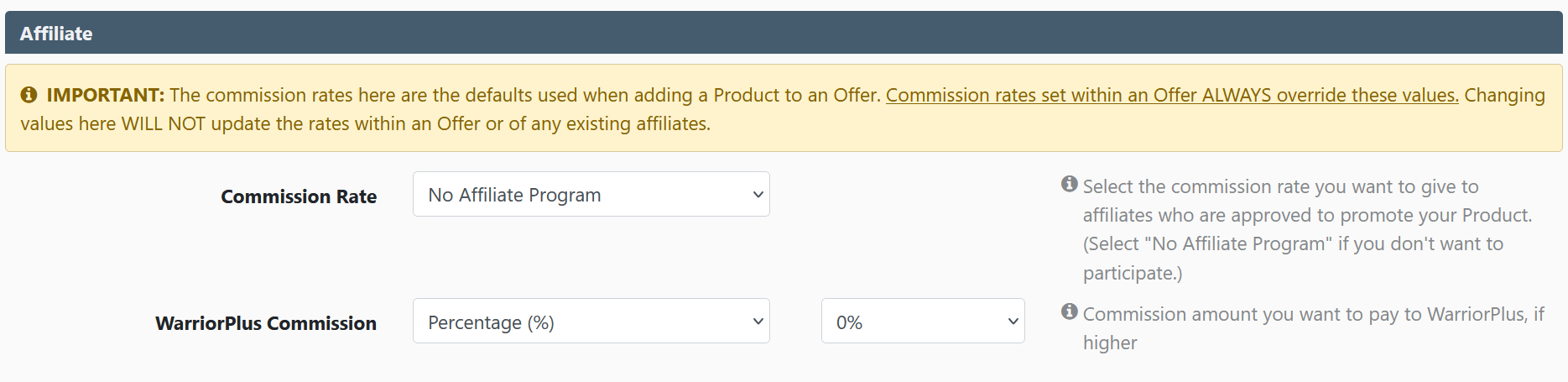
This is where you set your affiliate commissions. If you’re not using affiliates, you can leave it at ‘No affiliate program.
If you decide to use affiliates, you can set the commission percentage here.

If you’re wondering how much to offer, it’s up to you. Generally, for products that are $9.95 and below, 100% commission will help to attract more affiliates.
If it’s a $12.95 product, a 75% commission is good… and for any price above that, 50% will do.
There’s no right or wrong answer here – but the better the commission percentage, the easier it will be to convince affiliates to promote your product.
Now we come to an unexplained mystery in the WarriorPlus setting… The WarriorPlus Commission rate.

Here’s where you decide what percentage commission you wish to give W+.
Since your product may appear in the marketplace or Top Sellers list and so on, people who see your product on the platform may buy it.
In cases like these, WarriorPlus acts as the affiliate. Brilliant… but here’s where it gets strange…
Even if you set the commission rate to 0%, WarriorPlus will still take the same commission rate as what you give your other affiliates.
For example, if you’re giving your affiliates 50% but set WarriorPlus to 0%, it will still take a 50% cut should the sale be generated off the platform. So be aware of that.
- Email/webinar integration

You’ll integrate WarriorPlus with your email marketing tool here. Since we set it up earlier, you’ll just need to click on ‘New connection’ and choose your autoresponder and list from the dropdown.
Do note: You’ll need to create your list in your autoresponder first for it to show up in the dropdown menu here.
So if you’ve not done it, go set it up, then come back to WarriorPlus and configure this setting.
In this example, we’ll connect ConvertKit to WarriorPlus and name our list ‘PLR Buyers (Launches)’
This is what it’ll look like when we were setting up our email connection…

Once that’s done, we’re almost halfway home. Ignore all the settings below…

And click on the blue ‘Save’ button on the bottom right side of the screen.
Well done! You’ve listed your first product.
If you have any upsells and downsells, you’ll need to repeat this process and create a new product listing for each product in your funnel.
To speed up the process, you can clone your products and just tweak the relevant details…
Once your listing is created, go back to the ‘Vendor product dashboard’ here: https://warriorplus.com/vendor/products
You’ll see your product listing here…

Click on the listing and you’ll see this…
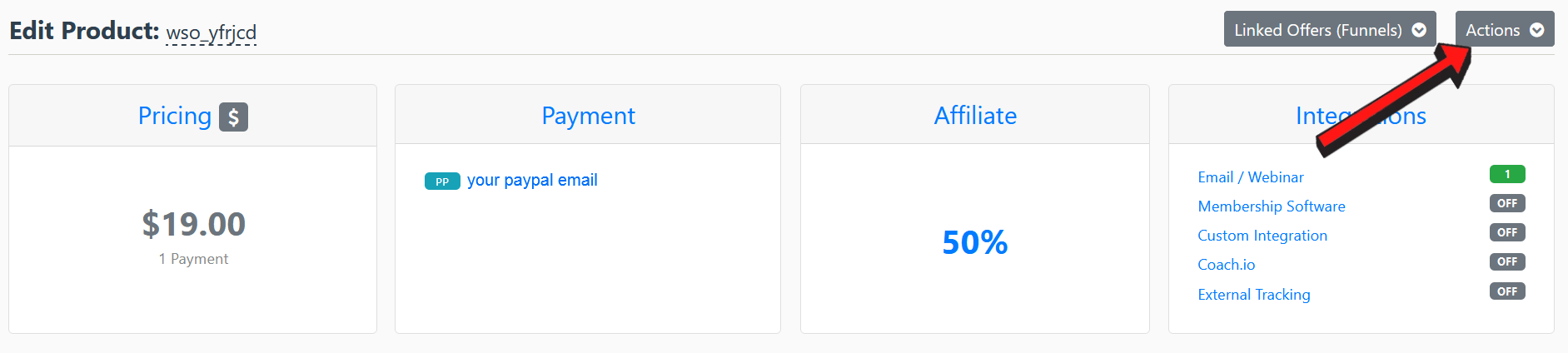
Click on ‘Actions’ (arrowed above) and this dropdown list will appear…

Click on ‘Clone Product’ and a new product listing will be created with all the same details you entered in your first listing.
From here, you just need to change the product name, price (if necessary), product access and so on.
Since a lot of the details such as category, licensing, refund policy, support details, disclosures, etc. will most probably be the same, you’ll save time by not having to fill these out again.
Creating new products will be faster and easier with the cloning feature.
For this tutorial, we’ve created 3 products just to show you how to build a funnel later on…
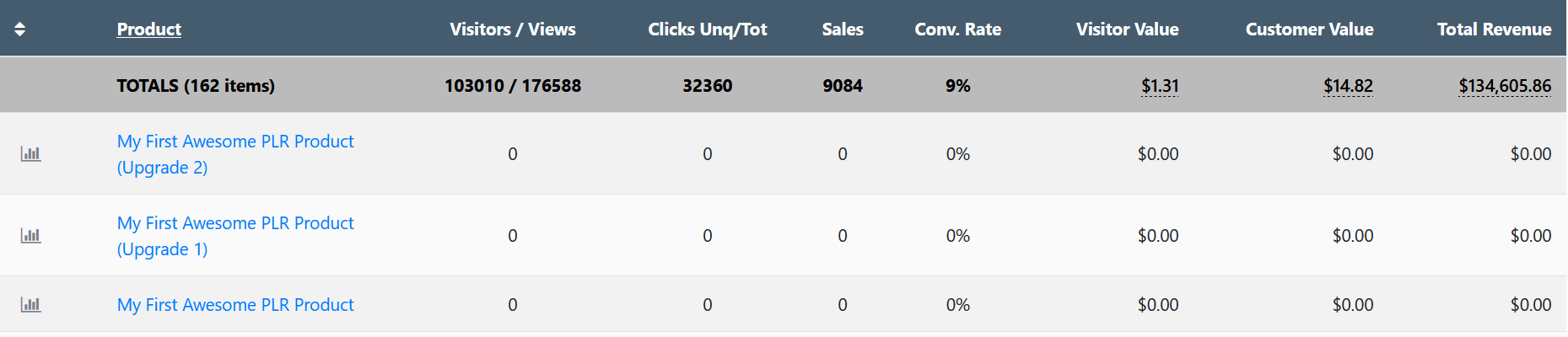
Once all your products are created, it’s time for Part 2 where we create the offer!
To get started, click on the offer dashboard here: https://warriorplus.com/vendor/offers